


Simple guide to chmod a freshly mounted external drive on any Linux device. Our Server Management Support team is ready to assist you.
How to Manage Permissions and Use chmod on a Freshly Mounted External Drive
Handling an external drive on Linux often feels confusing when permission errors appear out of nowhere. Many users plug in a drive and expect it to work, only to face blocked files or locked folders. A few quick checks fix these issues and keep the drive ready for everyday use. This guide shows the simple steps that help your system read, write, and manage files on any external drive with confidence.
Setting Permissions on an External Drive in Linux
To set permissions on an external drive, first find its mount point with df or lsblk. After you know the path, you can give yourself full access and let others read and open files. This setup works well for most users and avoids common permission errors or Linux Error issues.
If the drive uses NTFS or FAT thirty two, permissions depend on how the drive is mounted. Adjusting mount options in fstab often fixes ‘Too Many Open Files’ in Linux situations. A write protect switch on the drive can also block changes, so check that first.
If problems continue, update the ownership of the drive so your account controls the files. This step solves many permission issues on newly mounted drives.
Solutions
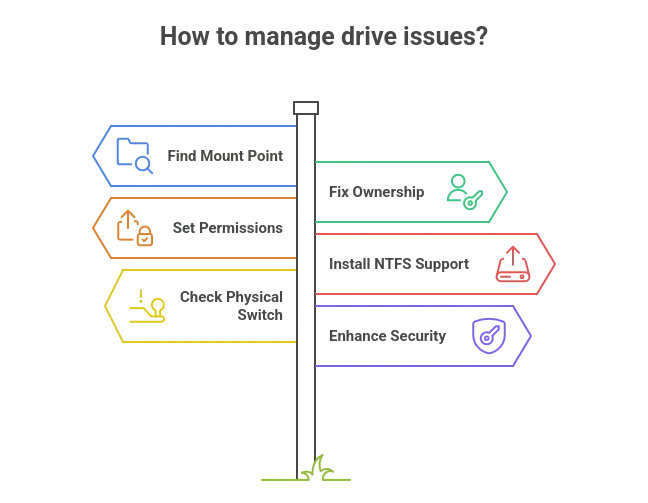
Solution For Finding The Mount Point
Check where your drive is mounted. Many drives appear in media or mnt. Use mount or df h to confirm the exact path.
Solution For Fixing Ownership Issues
Give your user account control of the drive. This step helps you avoid access problems and keeps every folder easy to manage.
Keep your external drive access steady today

Solution For Setting The Right Permissions
Choose the access level that fits your needs. You can keep the drive open for everyone, make it friendly for shared use, or keep it private.
Common choices:
• Full access for all users
• Read and open for others while you keep write access
• Full privacy for your account
Solution For NTFS Write Problems
Install ntfs three g when you use an NTFS drive. Many systems need it for proper write support.
Solution For Locked Drives
Check the physical switch on the drive. A locked switch blocks all changes even when permissions look correct.
Solution For Security Concerns
Avoid open access when the drive stores private files. Choose the smallest access level that matches your situation.
[Need assistance with a different issue? Our team is available 24/7.]
Conclusion
Managing file access becomes much easier when you know how to chmod a freshly mounted external drive. A clear mount point, correct ownership, and the right permission level keep your files ready and prevent frustrating errors. Once these steps are in place, your external drive stays reliable and easy to use on any Linux system.

